Record a Podcast Online in Your Browser: No Install
A practical walkthrough for hosts who want studio-quality remote recordings without asking guests to download apps, create accounts, or wrestle with setup screens.
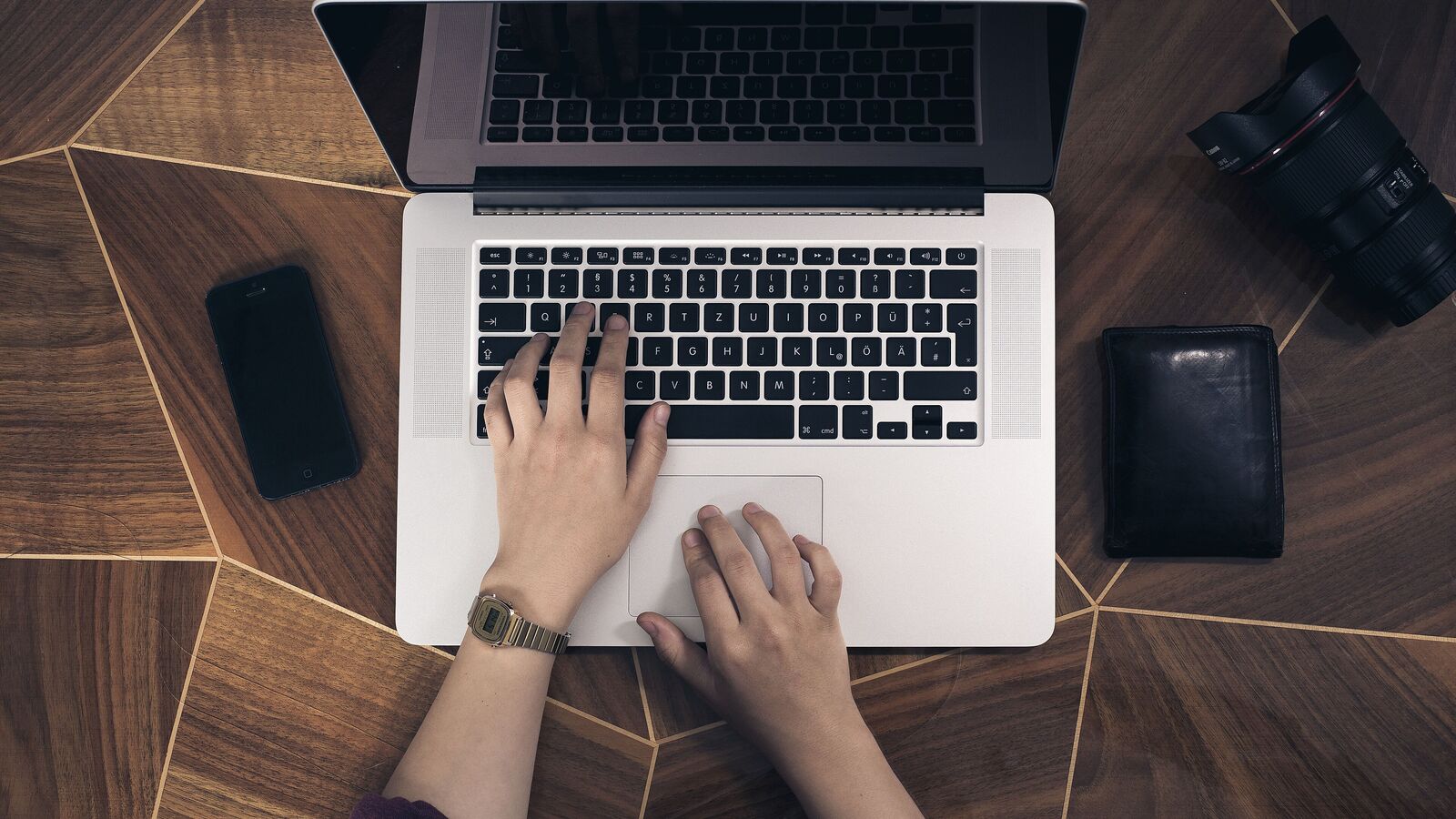
Photo: Fabian Irsara, “Hands on a laptop keyboard” · Wikimedia Commons · CC0 1.0 · cropped and resized
Why browser-based recording wins for guest-heavy shows
If your show runs on guests (executives, customers, authors, researchers), the single biggest predictor of whether a session happens on time is what you ask the guest to install. Every download, every account, every permission dialog is a place where the session can quietly fall apart.
Recording a podcast in the browser with no install removes that friction. The guest clicks a link, grants mic and camera access, and is in the room. No desktop app, no signup, no version mismatch ten minutes before recording.
Most desktop-app tools were designed before browsers could do high-quality local capture. Today, the MediaRecorder API lets a modern browser record each participant locally at near-source quality, store the chunks safely, and upload them in the background. The technical reasons to require an install have largely disappeared.
The hidden cost of asking guests to install software
Install friction is the most underrated reason remote recordings go sideways. Even when the tool itself is good, the path to actually using it tends to look like this:
Guest receives the link an hour before recording and ignores it.
Guest opens the link five minutes before the call and is asked to download an installer.
macOS or Windows blocks the installer until the guest digs into security settings.
Guest creates an account, confirms an email, picks a password.
Guest is prompted to update their browser, restart their device, or grant kernel-level permissions.
Recording starts ten to fifteen minutes late, with a guest who is now slightly stressed.
What a no-install browser recorder actually does
A modern browser-based recorder like Airtape captures each participant locally using the MediaRecorder API. The recording is chunked into small segments, written to IndexedDB on the participant's own device, and uploaded sequentially in the background.
That architecture matters because it gives you two things at once: a guest experience as simple as a Google Meet link, and source quality that does not depend on the live network. If the guest's WiFi drops for thirty seconds, the live call hiccups, but the locally recorded chunks remain intact.
After the session, the host gets separate audio and video tracks per participant, the format you actually want when editing, instead of a single mixed-down meeting recording.
The full no-install recording flow, step by step
Here is what the workflow looks like in practice, using Airtape as the example. The whole thing is built around minimising what the guest has to think about.
Create a session in your browser
Open Airtape, sign in, and start a new recording session. Name it after the episode or the guest so it is easy to find later. No download required on your end either.
Send the guest a single link
Copy the session link and send it by email or calendar invite. Tell the guest to use Chrome, Edge, or another Chromium-based browser, wear headphones, and open the link a couple of minutes early.
Guest joins from the browser
The guest clicks the link, sees a lobby screen, and grants microphone and camera permissions. No installer, no account, no password. They pick their input devices from a dropdown and they are in.
Do a thirty-second tech check
Confirm both sides can hear each other, that the right microphone is selected, and that the input level is healthy. This is the moment to catch a wrong default mic, not after the first ten minutes of recording.
Start recording and have the conversation
Hit record. Each participant's audio and video is captured locally on their device while the live call runs over WebRTC. A brief network blip might cause a moment of choppy live audio, but the local source files keep recording.
End the session and wait for upload
When you stop the session, each participant's chunks finish uploading from IndexedDB. Ask the guest to keep the tab open until the upload indicator says complete. This usually takes a couple of minutes on a normal connection.
Download separate tracks and clean up in post
Once processing is done, download separate audio and video tracks for every participant. Run automated noise removal if you want, grab the transcript, and bring the tracks into your editor of choice.
How this compares to Zoom, Riverside, and Zencastr
Compare the actual capture and export workflow. Riverside and Zencastr also allow guests to join without accounts; this is not an Airtape-exclusive feature.
Tool
Guest access
Check before recording
Airtape
Browser link
Plan allowance and upload completion
Riverside
Browser guest link
Required recording and editing features
Zencastr
Browser guest link
Current recording and export options
Zoom
Meeting link
Separate audio settings and recording path
Use the same guest and a short sample for each tool. Open the exported files afterwards rather than judging only the live call.
Audio and video quality in a browser recorder
A common worry is that browser recording means lower quality. In practice, the codec and bitrate used by the MediaRecorder API are good enough to produce broadcast-quality audio and HD video, especially when each participant is recorded locally rather than over the network.
The factors that actually move quality are the same as in any other workflow: a decent USB mic, a quiet room, wired headphones to prevent echo, and a wired internet connection if you can. None of those depend on whether the recorder is a browser tab or a native app.
When a desktop app still makes sense
Browser-based recording is the right default for almost every guest-driven show, but there are edge cases where a desktop app is genuinely useful: very long unattended recordings, multi-hour roundtables on older laptops, or workflows that depend on specific virtual audio routing setups.
If you are a solo host recording your own side without guests, you have more flexibility and can pick whatever tool you are most comfortable with. For self-recording specifically, Airtape's Solo recorder captures mic, camera, and screen locally in the browser, which is more than enough for tutorials, course videos, and sales recordings.
Frequently asked questions
Can I really record a podcast in the browser without installing anything?
Yes. Tools like Airtape use the MediaRecorder API to capture audio and video locally inside the browser tab. Both you and your guest can record at near-source quality without downloading any software.
Which browsers work best for no-install podcast recording?
Chrome and Edge are the most reliable. Other Chromium-based browsers like Brave and Arc also work. Safari has historically been less consistent for long recordings, so we recommend Chrome or Edge when possible.
What happens to the recording if my guest's internet drops?
The live call pauses, but the local recording does not. Chunks keep being written to IndexedDB on the guest's device and finish uploading once the connection comes back. Brief drops do not damage the source file.
Do guests need to create an account to join the session?
No. On Airtape, guests join with a single link, grant microphone and camera permissions, and start recording. There is no signup, no email verification, and no password to remember.
How long can a browser recording realistically be?
Long-form recordings of one to two hours work well in a modern Chromium browser. For longer sessions, ask the guest to close other heavy tabs and keep their laptop plugged in so the tab is not throttled by the operating system.
Is the audio quality from a browser recorder good enough to publish?
Yes, especially with local recording per participant. The bottleneck for podcast quality is usually the microphone and room, not the recorder. A decent USB mic and a quiet room will give you publish-ready audio from a browser tab.

.jpg)