How to Record Online Course Videos With No Software to Install
A step-by-step browser-based recording workflow for course creators and educators who need clean screen, camera, and mic captures without buying Camtasia or learning OBS.
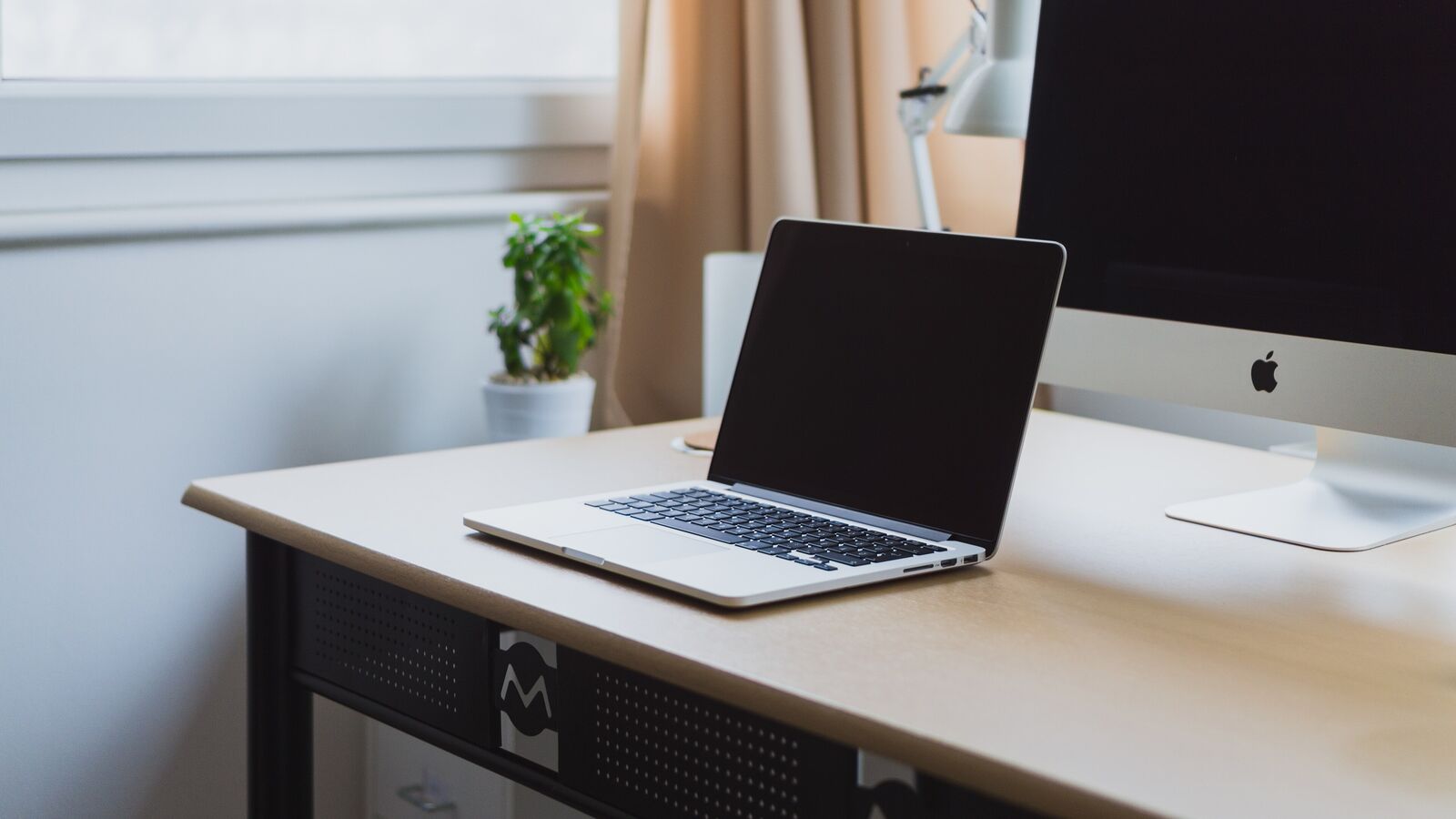
Photo: Norbert Levajsics, “Laptop on a neat desk” · Wikimedia Commons · CC0 1.0 · cropped and resized
The course creator's recording problem
If you want to record online course videos with no software install, you are usually trying to escape one of two traps. Either heavy desktop tools like Camtasia and Adobe Premiere are overkill for what you actually film, or short-form tools like Loom are too constrained for proper lessons with multiple shots, narration, and a clean intro.
The sweet spot is a browser-based recorder that captures screen, camera, and microphone in separate tracks. You get the production flexibility of a real recording setup without anyone in your audience or guest pool having to download anything.
What you actually need to shoot a good lesson
Course production rewards consistency more than gear. A modest setup applied to every lesson beats one polished video followed by a string of inconsistent ones.
A USB microphone or a quiet room with a decent headset mic; built-in laptop mics are the single biggest quality killer
Even, soft lighting on your face; a window during the day or a single softbox at night is enough
A clean desktop background, hidden notification banners, and a browser window with only the tabs you need on screen
A simple shot list per lesson so you do not improvise the structure for the tenth time
Airtape's Solo recorder for browser-based capture of screen, webcam, and microphone in one session
Setting up your shots in Airtape Solo
Airtape's Solo mode is built exactly for this kind of work: self-record audio, camera, and screen in the browser, then download separate files for editing. Here is how to set it up the first time.
Open the Solo recorder
Go to airtape.co and start a Solo session. The recorder lives entirely in the browser, no installation required, and no account needed to get going during beta.
Pick your sources
Choose your microphone, your camera, and the screen or window you want to capture. For software tutorials, capture the specific application window rather than the whole desktop so you do not accidentally show notifications.
Set up your framing
Position your camera at eye level. Stand or sit with the light source in front of you. Check the preview to make sure the screen capture shows exactly what your viewer should see.
Do a 30-second test
Record a quick test clip, download it, and watch with headphones. Listen for room echo, background hum, and clipping. Adjust the room or input gain before you commit to the full lesson.
Recording the lesson itself
Once the setup is dialed in, the recording itself becomes the easy part. The trick is to record more than you think you need and edit ruthlessly afterwards.
Start with a fresh take of the intro
Record your hook and learning objective as a clean isolated take. You will probably re-record this once you see how the rest of the lesson lands.
Chunk the lesson into segments
Record three to five minute segments rather than one 40-minute monologue. Shorter takes are easier to redo if you fluff a line, and they make editing dramatically faster.
Leave silence as edit markers
If you stumble, pause for two seconds and start the sentence over. The silence is easy to spot on the waveform later and gives your editor a clean cut point.
Re-record the intro at the end
By the time you finish the lesson body, you know exactly what you taught. Your intro will be sharper now than it was when you started.
Stop the session and download separate tracks
Airtape gives you separate camera, screen, and audio files. That isolation matters in editing because you can tune voice and screen capture independently.
Light post-production that actually moves the needle
You do not need a colorist or a sound engineer to make a course video that respects the viewer's time. A few small fixes get you 90% of the way.
Trim every dead second from the start and end of each segment so the pacing feels professional
Use a single light noise reduction pass to remove background hum; Airtape's built-in cleanup handles this on the audio track
Add a small fade-in and fade-out on the audio for each segment to avoid clicks at the cut
Use one consistent intro graphic and one consistent outro across the whole course rather than custom titles per lesson
Export at 1080p with a moderate bitrate; 4K does not help a screen-share lesson
How this differs from Loom and Camtasia
It helps to know where browser-based course recording sits on the spectrum. Loom is optimized for short async messages and feedback loops; the editor is intentionally simple and clips are usually under 10 minutes. Camtasia and Premiere are full-on production environments with timelines, effects, and a learning curve that can eat a week before you produce anything.
A browser recorder like Airtape Solo lands in between. You get separate clean source files like a proper production tool, captured without installing anything like a lightweight async tool. From there you can edit in whatever software you already know, or just trim in the browser if the lesson is simple.
Frequently asked questions
Can I record a course video entirely in my browser?
Yes. Browser-based recorders like Airtape Solo capture screen, webcam, and microphone in the browser using the MediaRecorder API and save the result locally before upload. No desktop software is required.
Is browser recording good enough quality for a paid course?
For screen-share lessons and talking-head segments, yes. Modern browsers capture at high resolution and bitrate. Audio quality depends more on your microphone and room than on the recorder itself.
How is this different from Loom?
Loom is designed for short asynchronous video messages and feedback. Course-oriented browser recorders give you separate camera, screen, and audio tracks for longer lessons and proper editing, rather than a single composed clip.
Do I need to learn editing software?
For a basic course, no. Trim each segment, stitch them in any free editor like iMovie or DaVinci Resolve, and export. Most of the production quality comes from clean source files and consistent pacing, not editing tricks.
Can I record multiple takes and pick the best one?
Yes. The recommended workflow is short segments, re-recording any segment you are not happy with. Because each segment downloads as its own file, you can simply drop the best take onto your edit timeline.
.jpg)